Choose a photo
The expo-file-system API got a major rewrite in SDK 54. The code examples in this section have been updated to use the new API.
See this PR for more info and an example of the changes between SDK 53 -> 54.
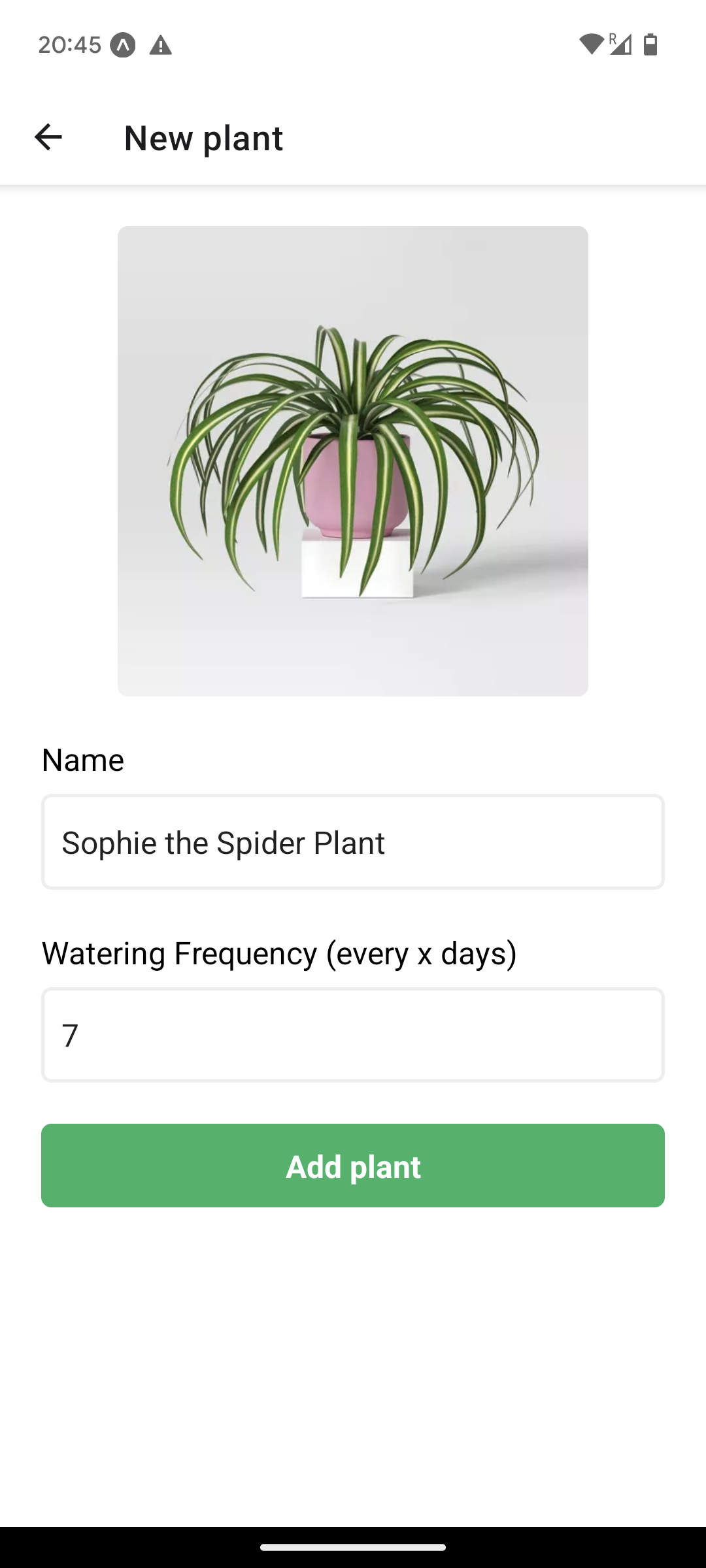
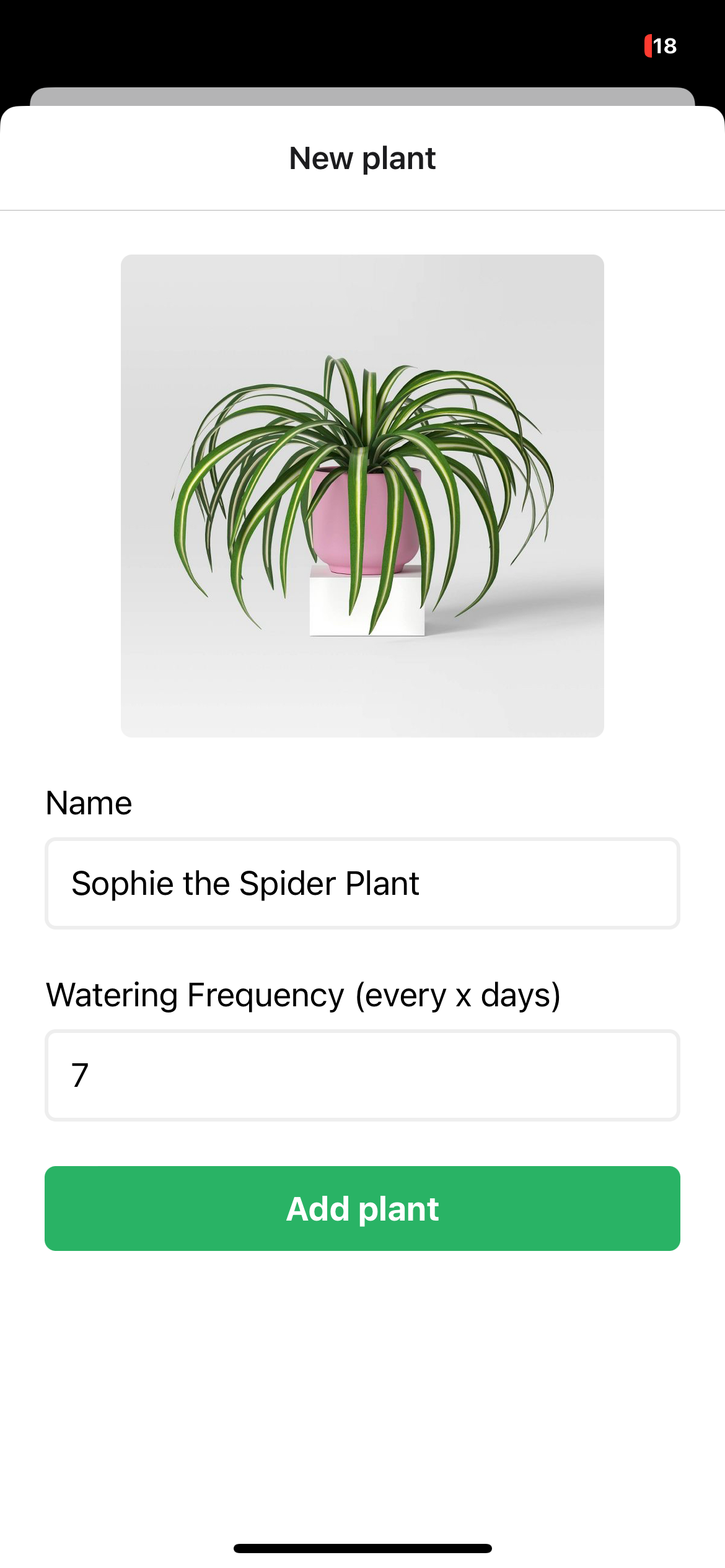
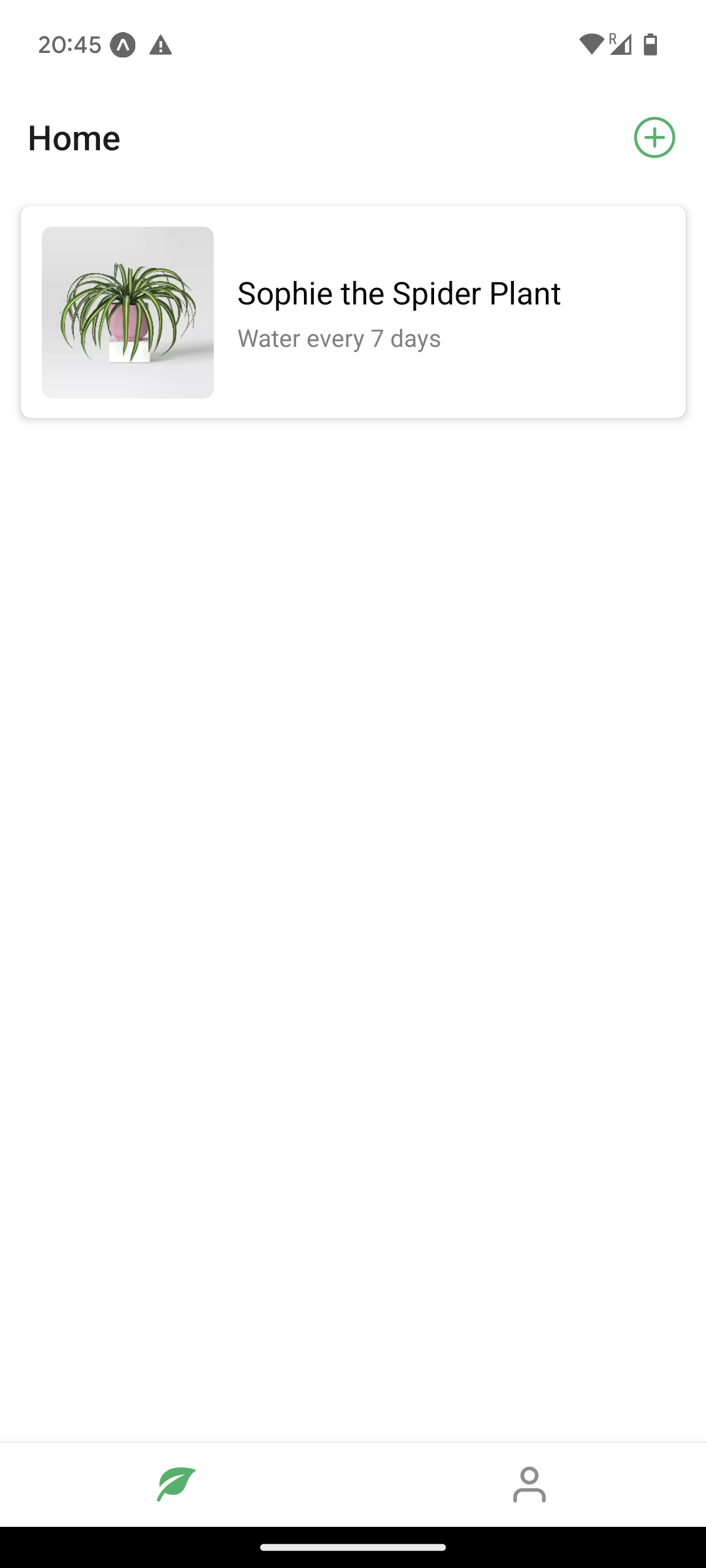
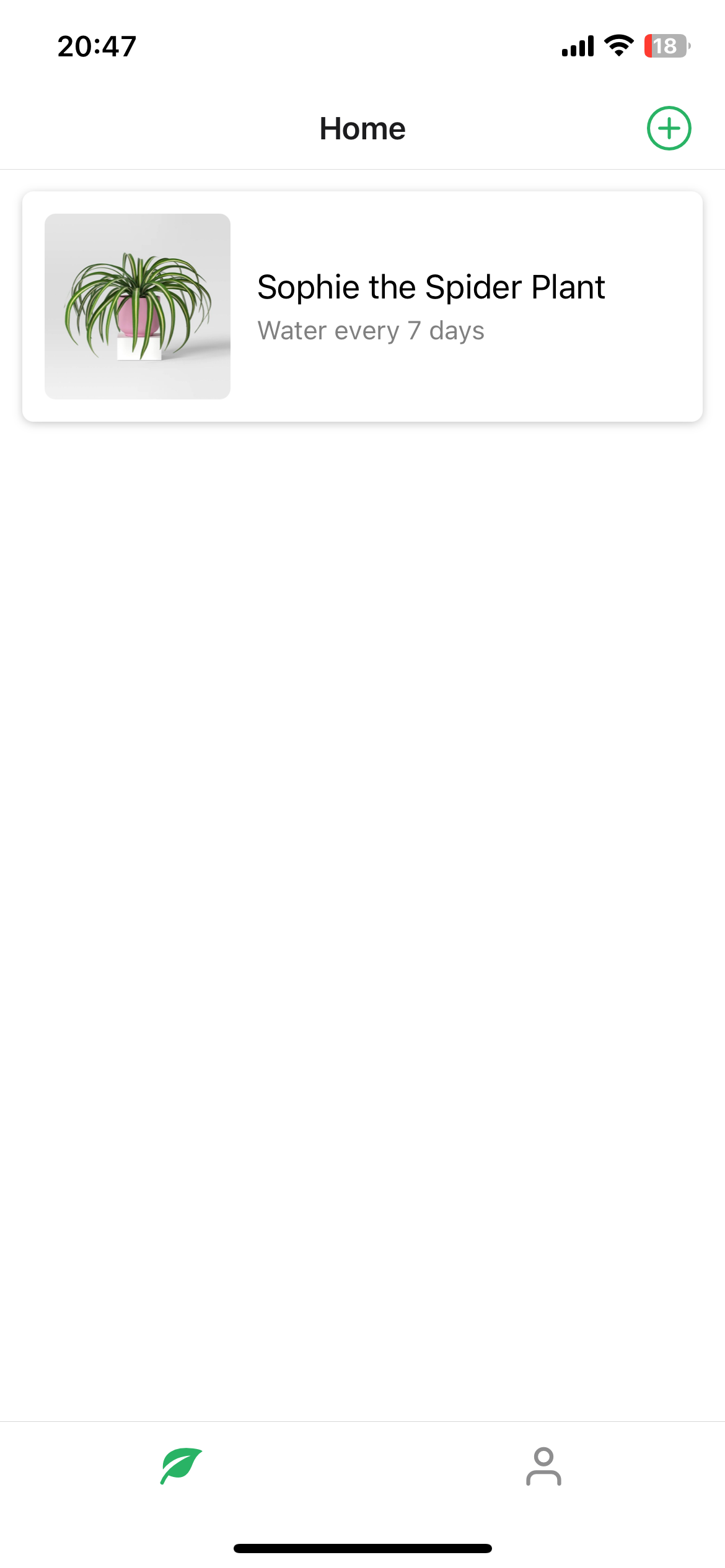
Let's see how we could store a plant's photo along with it's details.
Pick the image
For this we'll use image picker that lets you choose images both from the image Gallery as well a take a picture.
Install the image picker library
npx expo install expo-image-picker
Launch image picker
Update: app/new.tsx
@@ -1,4 +1,10 @@
-import { Text, StyleSheet, TextInput, Alert, View } from "react-native";
+import {
+  Text,
+  StyleSheet,
+  TextInput,
+  Alert,
+  TouchableOpacity,
+  Platform
+} from "react-native";
 import { theme } from "@/theme";
 import { PlantlyButton } from "@/components/PlantlyButton";
 import { useState } from "react";
@@ -6,12 +12,14 @@ import { PlantlyImage } from "@/components/PlantlyImage";
 import { KeyboardAwareScrollView } from "react-native-keyboard-aware-scroll-view";
 import { usePlantStore } from "@/store/plantsStore";
 import { useRouter } from "expo-router";
+import { launchImageLibraryAsync } from "expo-image-picker";

 export default function NewScreen() {
   const router = useRouter();
   const addPlant = usePlantStore((state) => state.addPlant);
   const [name, setName] = useState<string>();
   const [days, setDays] = useState<string>();
+  const [imageUri, setImageUri] = useState<string>();

   const handleSubmit = () => {
     if (!name) {
@@ -36,15 +44,32 @@ export default function NewScreen() {
     router.navigate("/");
   };

+  const handleChooseImage = async () => {
+    if (Platform.OS === "web") {
+      return;
+    }
+
+    const result = await ImagePicker.launchImageLibraryAsync({
+      mediaTypes: ["images"],
+      allowsEditing: true,
+      aspect: [1, 1],
+      quality: 1,
+    });
+
+    if (!result.canceled) {
+      setImageUri(result.assets[0].uri);
+    }
+  };
+
   return (
     <KeyboardAwareScrollView
       style={styles.container}
       contentContainerStyle={styles.contentContainer}
       keyboardShouldPersistTaps="handled"
     >
-      <View style={styles.centered}>
-        <PlantlyImage />
-      </View>
+      <TouchableOpacity
+        style={styles.centered}
+        onPress={handleChooseImage}
+        activeOpacity={0.8}
+      >
+        <PlantlyImage imageUri={imageUri} />
+      </TouchableOpacity>
       <Text style={styles.label}>Name</Text>
       <TextInput
         value={name}
@@ -90,5 +115,6 @@ const styles = StyleSheet.create({
   },
   centered: {
     alignItems: "center",
+    marginBottom: 24,
   },
 });
Show custom image in PlantlyImage
Update: components/PlantlyImage.tsx
@@ -1,14 +1,23 @@
 import { Image, useWindowDimensions } from "react-native";

-export function PlantlyImage({ size }: { size?: number }) {
+type Props = {
+  size?: number;
+  imageUri?: string;
+};
+
+export function PlantlyImage({ size, imageUri }: Props) {
   const { width } = useWindowDimensions();

   const imageSize = size || Math.min(width / 1.5, 400);

   return (
     <Image
-      source={require("@/assets/plantly.png")}
-      style={{ width: imageSize, height: imageSize }}
+      source={imageUri ? { uri: imageUri } : require("@/assets/plantly.png")}
+      style={{
+        width: imageSize,
+        height: imageSize,
+        borderRadius: 6,
+      }}
     />
   );
 }
Store the image
Now that we've chosen an image, we need to also store it when we save the plant. It's not sufficient to simply store the uri we get from the image picker, because that storage is not guaranteed to persist. We'll need to copy the image to the document storage for the app so it will exist as long as the app is installed.
For reading and writing files, we can use expo file system.
Install expo file system
npx expo install expo-file-system
Save the image when a new plant is added
First, let's pass the image uri to the addPlant function:
Update: app/new.tsx
@@ -40,7 +40,7 @@ export default function NewScreen() {
       );
     }

-    addPlant(name, Number(days));
+    addPlant(name, Number(days), imageUri);
     router.navigate("/");
   };
Now update the plants store to save the plant image along with the rest of the plant data:
Update: store/plantsStore.ts
@@ -1,18 +1,24 @@
 import AsyncStorage from "@react-native-async-storage/async-storage";
 import { create } from "zustand";
 import { persist, createJSONStorage } from "zustand/middleware";
+import { File, Paths } from "expo-file-system";

 export type PlantType = {
   id: string;
   name: string;
   wateringFrequencyDays: number;
   lastWateredAtTimestamp?: number;
+  imageUri?: string;
 };

 type PlantsState = {
   nextId: number;
   plants: PlantType[];
-  addPlant: (name: string, wateringFrequencyDays: number) => void;
+  addPlant: (
+    name: string,
+    wateringFrequencyDays: number,
+    imageUri?: string,
+  ) => Promise<void>;
   removePlant: (plantId: string) => void;
   waterPlant: (plantId: string) => void;
 };
@@ -22,7 +28,22 @@ export const usePlantStore = create(
     (set) => ({
       plants: [],
       nextId: 1,
-      addPlant: (name: string, wateringFrequencyDays: number) => {
+      addPlant: async (
+        name: string,
+        wateringFrequencyDays: number,
+        imageUri?: string,
+      ) => {
+        const fileName = `${new Date().getTime()}-${imageUri?.split("/").slice(-1)[0]}`;
+        const destinationFile = new File(Paths.document, fileName);
+        const savedImageUri = destinationFile.uri;
+
+        if (imageUri) {
+          const sourceFile = new File(imageUri);
+          await sourceFile.copy(destinationFile);
+        }
+
         return set((state) => {
           return {
             ...state,
@@ -32,6 +53,7 @@ export const usePlantStore = create(
                 id: String(state.nextId),
                 name,
                 wateringFrequencyDays,
+                imageUri: imageUri ? savedImageUri : undefined,
               },
               ...state.plants,
             ],
Finally, update the PlantCard to show the custom plant image if chosen:
Update: components/PlantCard.tsx
@@ -6,7 +6,7 @@ import { PlantlyImage } from "./PlantlyImage";
 export function PlantCard({ plant }: { plant: PlantType }) {
   return (
     <View style={styles.plantCard}>
-      <PlantlyImage size={100} />
+      <PlantlyImage size={100} imageUri={plant.imageUri} />
       <View style={styles.details}>
         <Text numberOfLines={1} style={styles.plantName}>
           {plant.name}
| Android | iOS |
|---|---|
 |  |
 |  |